

MS OneDrive - Instructions
sprungmarken_marker_18841
MS OneDrive login
Login via the OneDrive web interface
Prerequisites:
- Valid KIT account (ab1234 ∂does-not-exist.kit edu or ab1234@partner.kit.edu)
- Multi-factor authentication (MFA)
- Browser (e.g. Edge, Chrome, Firefox in the latest version)
- Internet access (no VPN required)
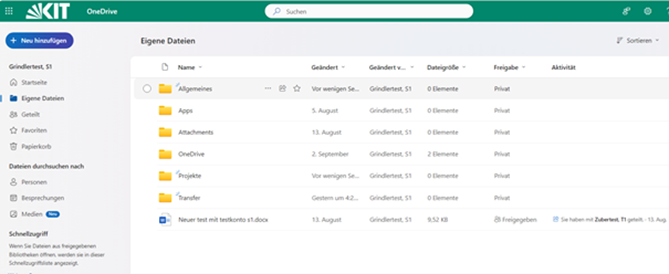
After logging in, the OneDrive web interface is displayed:
Access with desktop client
To synchronize content from OneDrive to File Explorer (Windows) or Finder (macOS), a OneDrive sync client can be downloaded and installed from the respective app store.
Access via Office apps
Content in MS OneDrive storage can also be accessed via Office apps (Word, Excel, PowerPoint) (File > Open > OneDrive).
Access via mobile devices
With the OneDrive app for iOS or Android (available in the respective app stores)
Information on KIT-specific configuration
Quota:
| Group of persons | Quota | Quota extension |
| Storage quota for employees | 20 GB | not expandable |
| Storage quota for guests and partners (GuP account) | 5 GB | not expandable |
Sharing and downloading content:
- In the MS Cloud, the option "People may share items they do not own" is deactivated at KIT, which means that items can only be shared by the person who created them (the owner).
- When sharing content, "Can view" permission is selected by default; this can be adjusted if necessary, e.g. to "Can edit" or "Can review".
- The MS Cloud automatically detects files infected with viruses or malware. These can no longer be downloaded locally from OneDrive. Instead, a message is displayed stating that the file is malicious and should be deleted from the cloud.
Share files and folders within KIT
- Click on My files in the navigation (left)
- Select the file or folder in the far left column (circle symbol)
- Click on "Share" in the ribbon (top)
- Check the link setting (click on the gear icon next to "Copy link")
- Select permissions via "More options" ("Show" or "Can edit")
- Optional: Add message and "Send"
Sharing and editing content with external persons
- Click on My files in the navigation (left)
Select the file or folder in the far left column (circle symbol)
Click on "Share" in the ribbon (top)
Check the link setting (click on the gear symbol next to "Copy link"): Use the link type "Specific people" and enter the external e-mail address.
The "Show only" authorization level should preferably be set. If editing rights are required, set the option "Can edit" and an expiration date of maximum 30 days.
Optionally, the entry of a password for editing a document can be activated.
Special features of OneDrive
Backup / Backup of OneDrive data
- There is no "backup function" in OneDrive.
To restore deleted documents or use a previous version of files, the "Recycle bin" and "Version history" functions can be used.
OneNote files (notebook)
- Notebooks stored in OneDrive are limited to a size of 2 GB
- OneNote files do not display an updated modification date or file size in the file view
- The version history of OneNote files is only displayed within the OneNote app