

Table of contents
sprungmarken_marker_13023
Device and data carrier encryption
The use of suitable encryption methods in digital communication and storage offers effective protection against unauthorized access to personal and sensitive data and information stored on workstations or data carriers. It is therefore recommended that both active devices (e.g. notebooks, smartphones, tablets) and external data carriers (e.g. USB sticks or mobile hard drives) are encrypted with one of the methods listed below. In this context, the KIT guideline on handling mobile devices must also be observed [1].
Any encryption method is only as good as the password used. Make sure you generate a strong password. In addition, the use of encrypted data carriers may be illegal in some countries. The KIT has published recommendations for business trips to countries outside of Europe
Below is an explanation of how the technical procedures are to be used and administered on the devices and which procedures are supported centrally by SCC.
Microsoft Windows
Under Windows, we recommend using the integrated Microsoft BitLocker encryption. BitLocker can be used to encrypt both internal and external data carriers (with BitLocker To Go) and store the generated recovery keys securely in the central directory service (KIT-AD). This key is required, for example, if the encrypted hard disk has to be removed from the device in order to read the data.
Notes for OU Admins and IT Commissioners
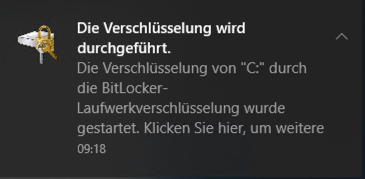
The administrator of the computer can activate encryption for managed devices via a centrally provided configuration (see below) or via the control panel. The user of the computer recognizes via a system speech bubble [see image] that encryption has been started or ended. This process reduces the performance of the devices once: devices with conventional hard disks are no longer able to work for this time, while devices with SSD memory do not affect the user's work.
BitLocker on administered computers in the KIT-AD
For the automatic configuration and activation of BitLocker on your devices, as an OU admin you will find the group policy SCC-BitLocker_enabled in the group policy administration of the KIT-AD. You can copy this, rename it and adapt it as required.
When this group policy is applied, the operating system volume is encrypted and the generated recovery key is saved in the computer object of the KIT-AD. With the above-mentioned GPO, Bitlocker is also reactivated if a local administrator has deactivated drive encryption.
Important: BitLocker encryption is started by a start script, which is why the device must boot once on the LAN to get this script.
BitLocker on non-administrated (stand-alone) computers
Please check whether there are compelling reasons not to include the device in the central directory service(KIT Active Directory) of the KIT. The KIT-AD offers the operators of the computers automatic key storage in addition to other advantages. If the local configuration of BitLocker drive encryption is used, the operator of the computer is completely responsible for key storage. We recommend printing out the recovery key and keeping it in a safe place, for example in a safe.
Further information
For more information on BitLocker, we recommend the following articles:
Other operating systems
Linux
You can encrypt an existing Linux system, provided you have the necessary expertise and time. In general, however, this is not advisable, so the best way to enable encryption is to activate it during installation. Each system installer does this in their own way; we therefore refer you to the documentation of the Linux distribution used.
macOS
macOS comes with FileVault 2, which can also be used to encrypt data carriers at a later date.
Instructions from Apple: support.apple.com/en-us/HT204837
Generate recovery key (e.g. for depositing with the ITB): support.apple.com/en-us/HT202385
Android / iOS
Encryption for smartphones is available for both iOS devices (iPhones) and Android devices with a version higher than version 6 by activating a lock code. Android devices with version 6 and lower must be encrypted manually via the settings menu for device security.
Open source encryption software
The open source software VeraCrypt can be used across all platforms to encrypt any data carriers and files. The freeware VeraCrypt can create encrypted containers and encrypt hard disks, SSDs, USB sticks and SD cards. The operation of VeraCrypt is similar to that of TrueCrypt, as the encryption software uses parts of the TrueCrypt 7.1a code. There is also a portable version, VeraCrypt Portable, which does not need to be installed.
Further information can be found at: www.heise.de/download/product/veracrypt-95747