

- Akademische Forschung und Lehre
- Mitarbeiter des KIT
- Studierende des KIT (auch auf privaten Geräten)
-
Origin Pro
-
Technical scientific data analysis and data visualization
- Contact:
- Contact Person:
About Origin Pro
Origin from ADDITIVE GmbH is one of the leading applications for technical and scientific data analysis and visualization. It offers a wide range of 2D and 3D graph types alongside an intuitive, easy-to-learn interface, making it suitable for both quick exploratory analysis and complex, automated workflows.
Key capabilities include:
- Statistics, signal processing, curve fitting, and peak analysis
- Programmability via Python and C, with access to the NAG numerical library
- A Project Explorer that consolidates all data, graphs, and results in a single file
- Fully automatable workflows covering data import, analysis, and report generation
- Extensive customization and parameterization options
Current Licensed Software Version
Origin 2026b
Note: Origin Pro is no longer offered through the KIT Software Shop. Please note that the current Software Shop service will be discontinued as of 30 June 2026. Additional information regarding the discontinuation of the Software Shop can be found at the following link: Software Shop (EOL).
Installation
Origin users who already have an account on the Origin website and possess a valid serial number can download the installation files directly from the Origin website. To download the installation files, please log in to the Origin website using your KIT credentials. Then navigate to User Profile → Licensing → Manage My License(s), select your serial number, and click Download This Version.
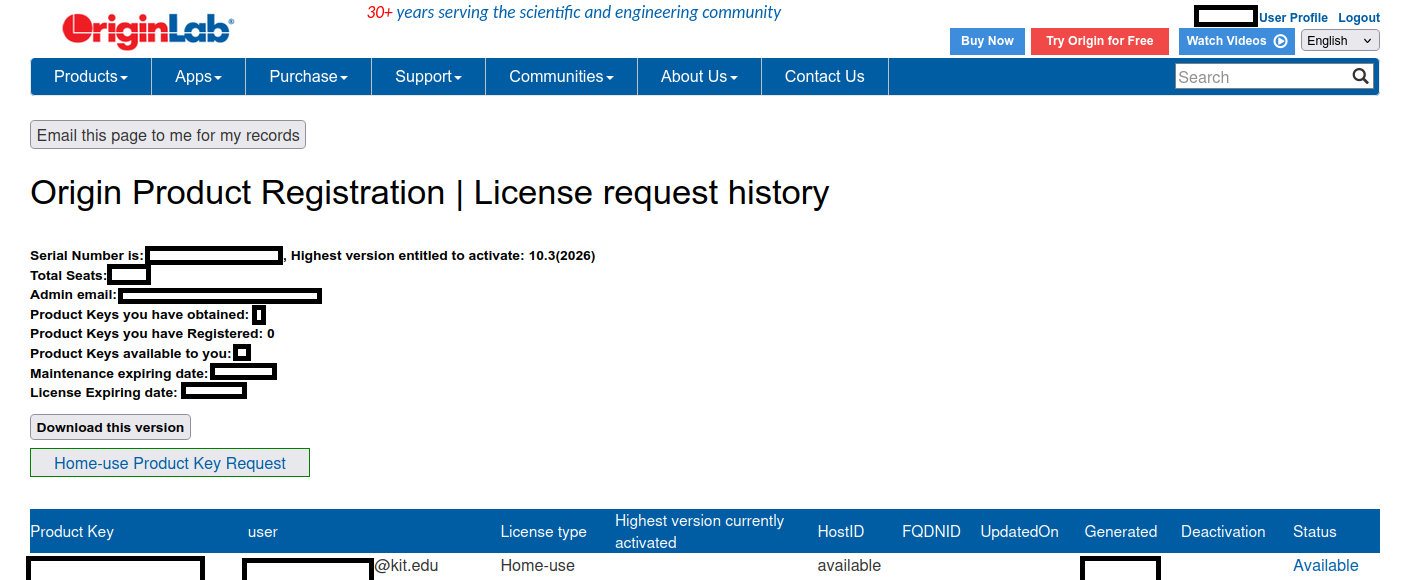
If you do not yet have an account on the Origin website, we strongly recommend creating one by following the instructions provided in the Licensing section below. Alternatively, the installation files are also available on our FTP server. If you experience difficulties downloading the files from the Origin website , you may download them from the FTP server instead. Please note that an active internet connection is required to access the FTP server. If you are connecting from outside the KIT network, you must first establish a VPN connection to access the license server. Instructions for setting up and using the VPN can be found here: Remote Access (VPN). For information on MSI installation packages and detailed deployment instructions, please refer to the following documentation: MSI Installation
Note: Installation files for versions that are not listed above can be obtained upon request by contacting license administrator scs-contact∂scc kit edu.
Licensing
Note: Single-user licenses are valid for one year, with October 1 as the annual renewal date. To continue using Origin after a license expires, request a new product key as described below.
The licensing type for using Origin software is determined by the serial number assigned to you by the license administrator. Note that serial numbers for the Single-User (or Home-Use) and Network licenses are in different formats and are not interchangeable. You must create an account on the Origin website using your KIT credentials and request a serial number. For step-by-step instructions on account creation and serial number request, refer to the file Origin User Guide available on our FTP server. Please use the Network license on all stationary, networked systems. Use the Single-User (or Home-Use) license only on mobile devices or in situations where network access is unavailable.
Single-User License: This license type is suitable for users who work with Origin frequently offline or on a mobile device.
- Serial number format:
xxxxx-6xxx-xxxxxxx - During installation, enter the serial number.
- After installation, activate the software using the Product Key provided alongside your serial number sent to your registered KIT email address.
Network License: This license type is suitable for users working on stationary, networked systems with a reliable connection to the KIT network. The software checks out a license from the central network license server and requires network access while in use. If you are accessing it from outside the KIT network domain, please connect via VPN in order to reach the license server. For instructions on setting up and using the VPN, please refer to the link: Remote Access (VPN).
- Serial number format:
xxxxx-3xxx-79xxxxx - During installation, enter the serial number.
- After installation, configure the license server connection (hostname and port) as described in the network license configuration file available on the FTP server.
Note: If the serial number you received does not match your intended license type, contact the license administrator at scitech-software∂scc kit edu.
Installing Origin Pro
The following instructions outline the installation procedure for Origin Pro after a valid serial number has been assigned.Please download the installation package according to the instructions provided in the Installation section of the Overview tab. Once the download is complete, extract (unzip) the package and proceed with the installation steps described below.
Right-click on setup.exe and select Run as administrator to start the installation process.
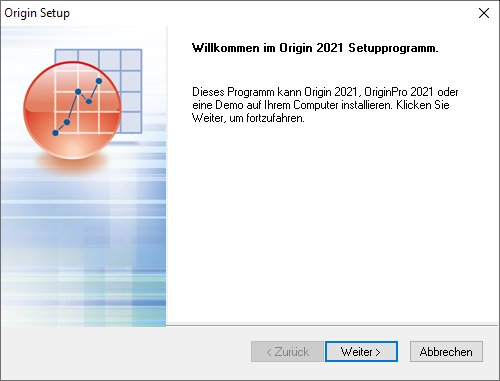
Click "Next >" to continue.
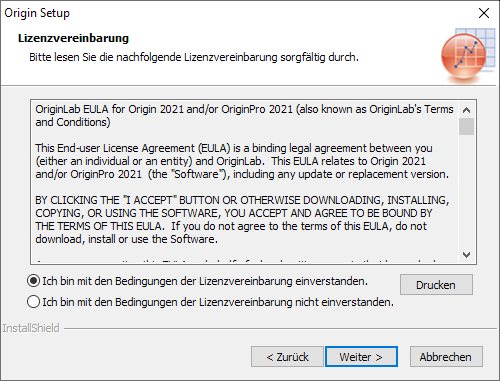
Review the license agreement and select "Yes" to accept the terms and proceed with the installation.
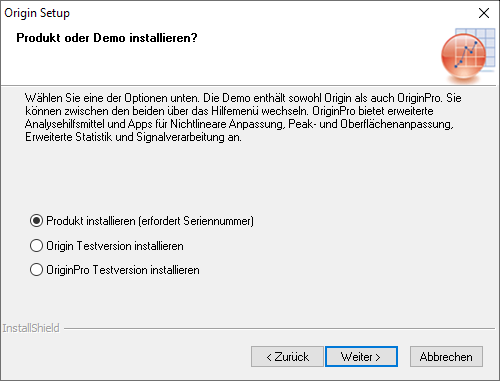
Click "Next >" to continue.
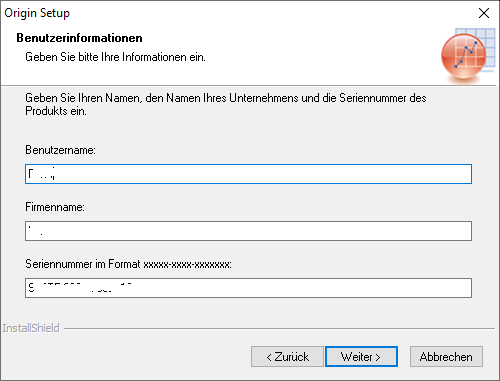
Enter your details using the account information you created with your KIT credentials. Then enter the serial number provided to you. Please note that the serial number differs depending on the license type (Single User license or Network license). Enter the appropriate serial number that you received from the license administrator.
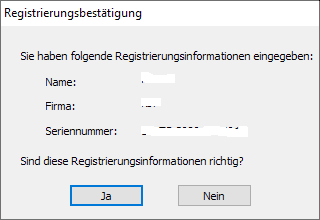
Review the entered information and confirm that all details are correct before proceeding.

After that, you will be prompted to select the installation directory. Choose the desired location and click "Next >" to continue.
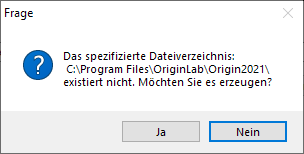
If the selected installation directory does not already exist, you will be prompted to create it. Click "Yes" to create the directory and continue.
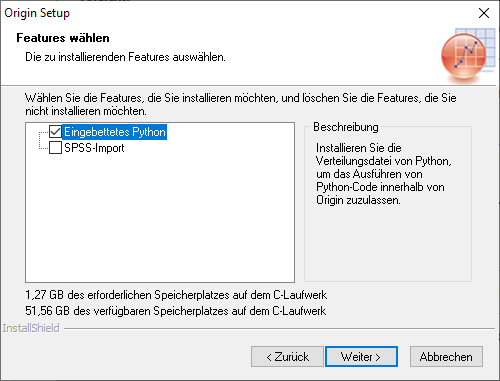
Select the modules you want to install and click "Next >" to continue.
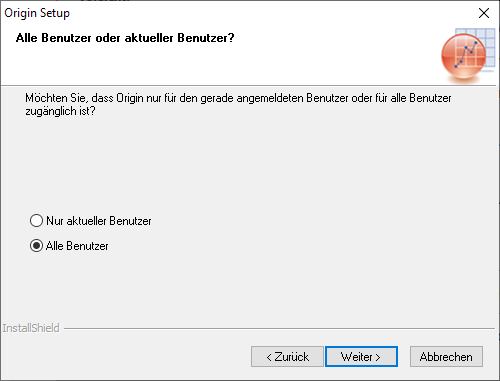
Specify which users should have access to the software on your computer and click "Next >" to continue.
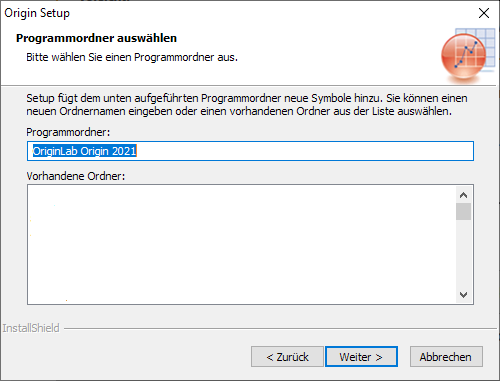
Specify the location where the program shortcuts should be placed in the Start menu and click "Next >" to continue.
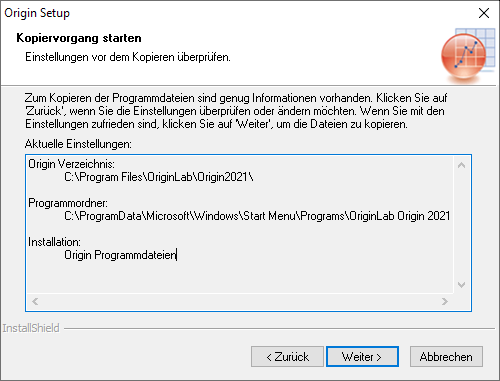
Review the installation settings to ensure that everything is correct. Click "Next >" to start the installation process.
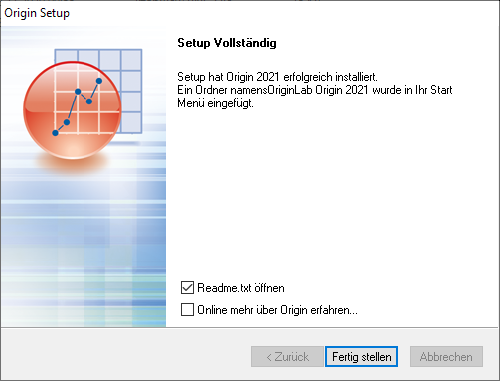
Click "Finish" to complete the installation.
Please carefully follow the instructions below for the post-installation configuration. After the installation is complete, start the software and proceed with the license activation.
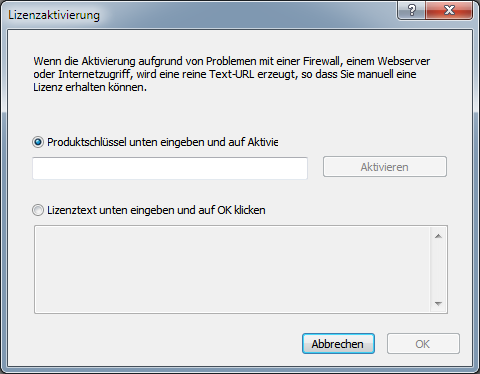
If you entered a Single-User License serial number during the installation process, the software will prompt you to enter the corresponding product key for activation. The product key is provided in the email sent to your KIT email address together with the assigned serial number.
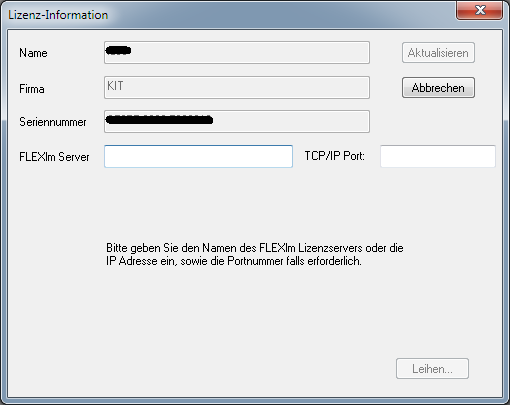
If you entered a Network License serial number during the installation process, the software will prompt you to configure the network license server name and port number. Please use the server details provided in the network license configuration file available on the FTP server to complete the license configuration. An active internet connection is required to use the software. If you are accessing it from outside the KIT network domain, please connect via VPN in order to reach the license server. For instructions on setting up and using the VPN, please refer to the link: Remote Access (VPN)
Origin MSI Installation
OriginLab documents the automated installation via an MSI package on this web page.
Renew license
License renewal
Network version
A current license key is installed on the license server.
Single user version (Home-Use)
The previous renewal steps for single-user licenses are no longer valid, as all existing single-user licenses have been removed. To continue using Origin on a mobile or offline device, request a new product key by following the instructions in the Overview section above and in the Origin User Guide on our FTP server.
If you have any questions, contact the license administrator at scitech-software∂scc kit edu.
Borrow Origin Pro License
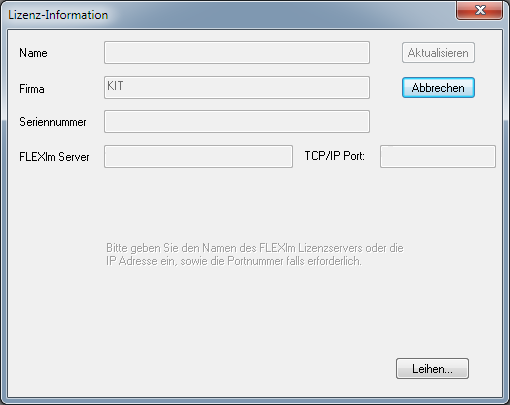
Origin allows borrowing of licenses. This is useful if, for example, you are on a business trip or do not have a connection to the license server during lectures and tutorials. To do this, go to the Help menu. There you will see the following window under About Origin:

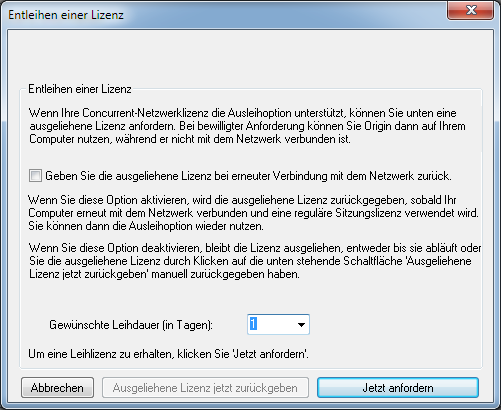
If you click on License... and in the following window click on Borrow... you can borrow a license for a maximum of 6 days by clicking Request Now.
Origin Updates
Origin software updates can be obtained directly from OriginLab's web page.
To install, follow these steps:
- Close Origin Pro and all other applications.
- Download the latest service update from the URL above.
- Save the update in the Updates folder of your Origin installation directory.
- Start the update by double-clicking on it.
- After the update is complete, launch Origin. You should now update the help files by going to the Help menu and checking for updates . .. Execute. You will now see any existing help files and can install them directly.