AnyDesk for macOS
Download AnyDesk client software for macOS
-
Download AnyDesk Client
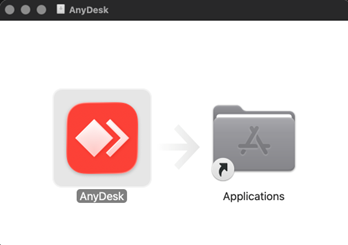
Double-click the AnyDesk icon to launch the program.
Optional: Drag the AnyDesk icon into the Applications folder to install AnyDesk
- Since the software was not downloaded from the App Store, a warning message appears.
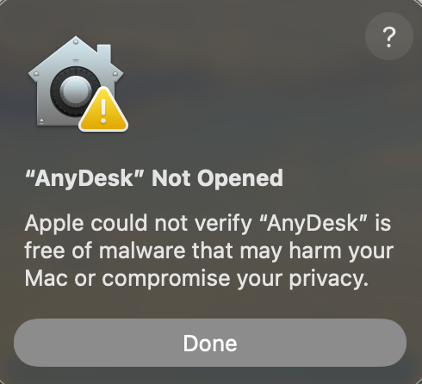
- AnyDesk must therefore be explicitly approved.
Apple icon > System Preferences > Privacy & Security ->
Scroll down slightly and allow the app in the Security Division.
(Open Anyway) -> local admin rights required

-
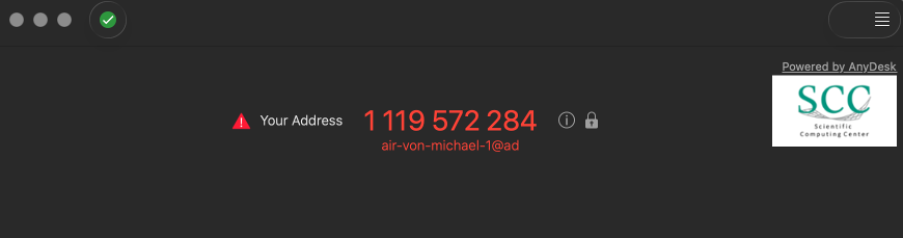
After approval, AnyDesk will launch and display "Your Address".
This address must be provided to the support representative so that a connection to your computer can be established.
-
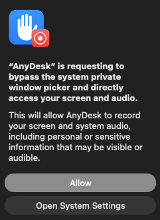
Additionally, AnyDesk also requires permission to record your screen.
1. Apple icon > System Preferences > Data Protection & Security >
Data protection & Security > Screen & System Audio Recording
2. Add a new application using '+'
3. Confirm your password
4. Select AnyDesk
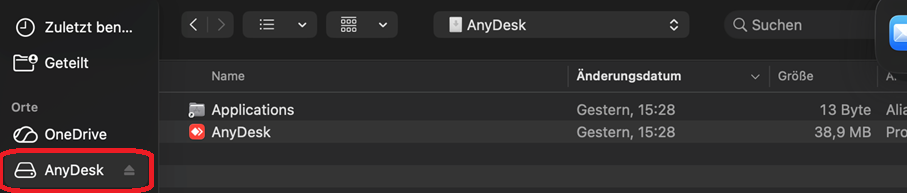
AnyDesk can be selected from the 'Applications' folder if it has been installed. Otherwise, select it from the connected drive for AnyDesk.
-
Then restart AnyDesk
-
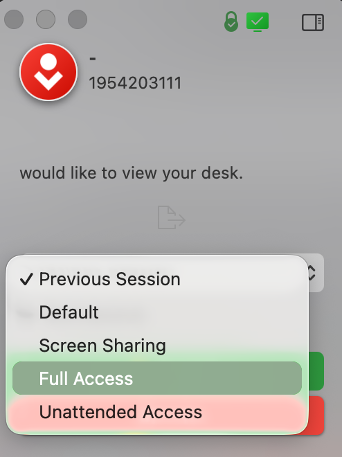
By 'Accepting' the AnyDesk session and 'Allowing' access to your screen and audio, the support representative can access your screen