

- Akademische Forschung und Lehre
- Geräte des KIT
- Mitarbeiter des KIT
- Studierende des KIT (auch auf privaten Geräten)
- siehe Lizenzbedingungen
-
ANSYS CFX
-
A high-fidelity CFD solver optimized for rotating machinery simulation, including pumps, fans, compressors, and turbines, with advanced support for conjugate heat transfer, multiphase flow, and Fluid-Structure Interaction (FSI).
- Contact:
- Contact Person:
- Services:
- Links:Ansys Home
About ANSYS CFX
Ansys CFX is widely regarded as the industry-leading CFD solver for turbomachinery applications, known for its extreme robustness and accuracy. Engineers use it to simulate rotating machinery including pumps, fans, compressors, gas turbines, and hydraulic turbines. Both the solver and the physics models are embedded in a modern, intuitive, and flexible graphical user interface, with extensive capabilities for customization and automation via session files, scripting, and a powerful expression language. While CFX is purpose-built for turbomachinery, its physics capabilities extend to a broad range of flow problems. It supports steady-state and transient simulations, conjugate heat transfer (CHT), multiphase flows using the Eulerian–Eulerian model, cavitation, combustion, and two-way Fluid-Structure Interaction (FSI) via mesh deformation. CFX can be coupled with Ansys Mechanical for FSI, aeromechanics, acoustics, and thermomechanical modelling. Highly scalable HPC support enables fast parallel computation for large turbomachinery simulations.
Current Licensed Software Version
ANSYS 2026R1
ANSYS 2025R2
Installation
The installation files and the installation document for the latest version of the software, along with network licensing information are available on our FTP server. ANSYS CFX is also installed and available on our Linux clusters, BwUniCluster3.0 and Horeka to run computationally intensive simulations.
Note: Installation files for versions that are not listed above can be obtained upon request by contacting scs-contact∂scc kit edu.
Licensing
Network License: There are two separate ANSYS network license servers, both of which are currently active. The configuration details for both servers are provided in the network license configuration file available on the FTP server. During installation, please specify the appropriate license server name and port number as indicated in the configuration file, based on your intended use of the software. The two license servers serve distinct purposes and must be used accordingly:
- ANSYS Academic Research: Intended for non-commercial academic research activities conducted at KIT, including PhD research, Master's theses, Bachelor's theses, and other scientific projects.
- ANSYS Academic Teaching: Intended exclusively for teaching activities, such as lectures, courses, and exercises.
Please ensure that you select the appropriate license server based on your intended use of the software. Using either license for personal or commercial purposes is strictly prohibited. An active internet connection is required to use the software. If you are accessing it from outside the KIT network domain, please connect via VPN in order to reach the license server. For instructions on setting up and using the VPN, please refer to the link: Remote Access (VPN)
Academic Licensing Terms and Conditions
For Program(s) which contain the terms Academic, Associate, Research, EduPack or Teaching in the Program Name (hereinafter, “Academic Program(s)”), the following terms shall apply:
- The analysis work performed with the Academic Program(s) must be non-proprietary work.
- Licensee and its Contract Users must be or be affiliated with an academic facility. In addition to its employees and Contract Users, Licensee may permit individuals who are students at such academic facility to access and use the Academic Program(s). Such students will be considered Contract Users of Licensee.
- The Academic Program(s) may not be used for competitive analysis (such as benchmarking) or for any commercial activity, including consulting.
- Notwithstanding any terms of the Agreement to the contrary, Academic Program(s) may be accessed and used by Licensee at the Designated Site or any other location within a 50 mile/80 kilometer radius of the Designated Site. Academic Program(s) with Ansys Academic Multiphysics Campus Solutions and/or Academic Extended LAN in place (as may be identified in the License Form or Quotation) may be accessed and used by Licensee at the Designated Site or any other location within the same country as the Designated Site; provided, however, that (i) such access and use is and shall remain subject to Export Laws, (ii) Licensee is expressly prohibited from accessing or using the Academic Program(s) at or within any U.S. embargoed country or area; and (iii) access and use of the Academic Program(s) shall be limited to Licensee’s employees and Contract Users (including students) who are based and/or registered to attend classes at the Designated Site. Such limitations apply to any access and/or use of the Academic Program(s), including, but not limited to, access via a VPN connection or through license borrowing.
- TECS for the Academic Program(s) will be provided at the sole discretion of Licensor and/or its Affiliates and/or Channel Partners. In the event TECS is provided, all Customer Support requests must be initiated via the Ansys Learning Forum at www.ansys.com/forum, and Section 9 TECS of the Agreement shall apply.
Academic Program(s) which contain the term "Associate" in the Program Name may only be used for non-proprietary industry related research, degree and/or non-degree related research, student instruction, student projects, and student demonstrations.
Academic Program(s) which contain the term "Research" in the Program Name may only be used for non-proprietary degree and/or non-degree related research, student instruction, student projects, and student demonstrations.
Academic Program(s) which contain the term "Teaching" or “EduPack” in the Program Name as well as any free student downloads may only be used for student instruction, student projects, and student demonstrations.
Academic Program(s) which contain the term “Academic” or “Tools” but do not contain the terms "Associate", "Research", “EduPack” or "Teaching" in the Program Name assume the terms of use of the Academic Program(s) it is used with. When used as a standalone program, or if the Program(s) are not associated with any other Academic Program(s), the Program may only be used for degree and/or non-degree related research, student instruction, student projects, and student demonstrations.
Academic Program(s) which contain the term "Campus Solution" in the Program name contain combinations of Academic Research and Academic Teaching Products, and as such each of these component products must be used in accordance with the Academic Research & Academic Teaching terms of use described above.
Where Licensee is using the Academic Program(s) for research projects, Licensee will, if requested by Licensor, submit a Case Study prior to the end of the License Term. The Case Study will be in English, contain a title and an abstract, and include: (1) the purpose of the study; (2) the approach used to conduct the study; (3) the results obtained; (4) the conclusion as to the results obtained versus the objective of the study; (5) how the Academic Program(s) contributed to the study; (6) three color graphics of the model and meshes; and (7) the Academic Program(s) input files or session log file.
CFX Quick Start Guide

Summary
CFX on the Linux clusters of the SCC
Introduction
ANSYS CFX is a CFD software from ANSYS, Inc. At the SCC it is installed on the Linux cluster bwUniCluster. For interested institutes the software is available for a local installation (WINX64 / LINX64), too.
Additional to the CFX solver ANSYS CFX provides:
- the development environment ANSYS Workbench and the modeler ANSYS Design Modeler.
- a preprocessor CFX-Pre, for model creation
- a postprocessor CFD-Post
All modules can be started via command lines or via the CFX Launcher . More details can be found in the Quick Start Guide and in the CFX manuals.
An overview of the program's functionalities:
- steady and transient flows
- laminar Newtonian and non-Newtonian fluids
- numerous turbulence models
- incompressible and compressible fluids,
also for the supersonic and transonic range - heat conduction, convection
- mass transport, chemical reactions
- flows of several fluids, multiphase flow
- particle trajectories, combustion, radiation
- free surfaces
- movable and changeable grids
- local mesh refinement
- import of ProE and other CAD data
- Visualization with EnSight
The CFX components
CFX can be used integrated in ANSYS Workbench, but the CFX components can also be started directly via commands or via the CFX Launcher. This is simply run by
cfx5
The command can provide information about software and system configuration, too.
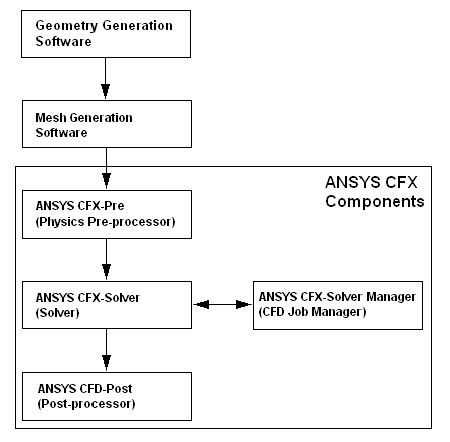
ANSYS Workbench and ANSYS Design Modeler
are both tools to generate geometries and meshes for CFX. A gtm or cfx file will be created. Other tools are "third party" programs like HyperMesh.
CFX-Pre
is a preprocessor for defining the boundary conditions and the physical properties of the model.
It reads the gtm- or cfx-file and creates a case file id.cfx.
- a case file id .cfx
- a session file id.pre (on request)
- a definition file id.def, which is read by the CFX solver
- a Multi-Configuration-File id.mdef, which is read by the CFX-Solver
- a CFX Command Language file id .ccl (on request)
CFX-Pre can also read in pre-, cfx-, def- and ccl-files and build a simulation from them.
Even a result file id.res, as generated by the solver, can be reimported.
CFX Solver Manager
is an interface for interaction with the solver.
- here a job can be
- started, canceled
- monitored
- the results can be exported in certain formats, e.g.
- Patran
- EnSight
- FieldView
- the definition file can be edited
The Solver Manager numbers the jobs, starting with 001, so that the job names and results files have id_001 as a name component.
The CFX Solver reads the definition file id.def (or id.mdef) and creates the following files:
the results file, which contains the geometry and the solution and is the input file for CFD post: id_001.res or id_001.mres
- in the transient case, a directory with the name id_001 is created at the same time, containing files with the name nn.trn, where nn means the number of the time step, or
- the output file containing information about the model and the solution process; name: id_001.out or id_001.mout
CFD post
is used to visualize the results.
- as input file the result file id.res or id.mres is necessary
- in transient case CFD-Post also accesses the files in the subdirectory id_nn
- further possible input files are
- the CFD-Post session file id.cse
- the CFD-Post Statefile id.cst (this corresponds to the CFX Command Language File)
- the CFX definition file id.def
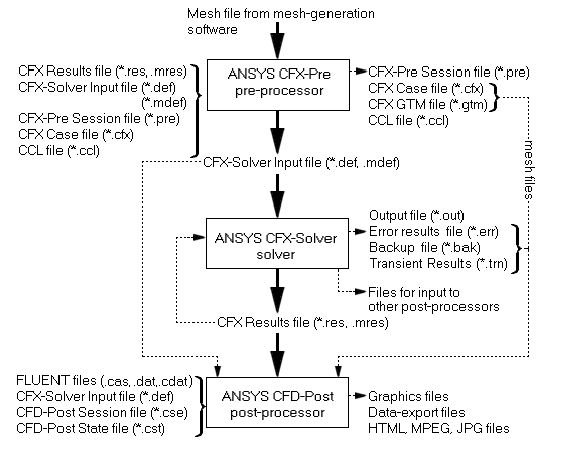
All modules can also be run directly with commands. Also functionalities of the CFX Solver Manager can be viewed directly. Some important commands are:
| cfx5pre | runs CFX-Pre directly |
| cfx5post |
runs CFD-Post directly |
|
cfx5info |
prints the system and program configuration |
|
cfx5_config |
corresponds to the call cfx5info - full |
|
cfxexport |
exports data in definition and results file in formats for |
|
cfx5cmds |
edits the definition file |
The individual descriptions and options can be obtained by entering the commands with the -h option.
CFX on the Linux clusters of the SCC
On the Linux cluster bwUniCluster a modular concept is used. To use ANSYS, you must first load the appropriate module. You get all available software modules by running
module avail
To load the module of the current version of ANSYS, type the following:
module load cae/ansys
You can also load the module with the desired version number, such as
module load cae/ansys/2023R2
On the Linux clusters of the SCC, the execution of CFX should be under the control of a job management system that provides the computing resources for the CFX job. To simplify the use of CFX on these clusters, the start script 'cfx5job' was provided. The start of the solver for the bwUniCluster is thus:
cfx5job -j name -t cpu-time -m memory
[-R restart-file][-p processors][-n nodes][-q queue][-s string]
|
name |
name of the definition file |
|
cpu-time |
CPU time in minutes |
|
memory |
Main memory requirement in MByte |
|
processors |
Number of processors |
|
nodes |
number of nodes; preallocation: 1 |
| queue | queue type; default: single/ multiple |
|
restart file |
name of the result file, if a restart run should follow |
|
string |
further options, which can be specified as text string enclosed in apostrophes |
Here is an example to run an CFX computation in parallel on two nodes with 40 processors each and 90,000 MB main memory requirements for 30 minutes:
cfx5job -j test -t 30 -n 2 -p 40 -m 90000
The start of CFX can also be done by a script. Here below a script "run_cfx.sh" to run CFX with the start method 'Intel MPI Distributed Parallel':
#!/bin/sh
#SBATCH --nodes=2
#SBATCH --ntasks-per-node=40
#SBATCH --partition=multiple
#SBATCH --time=0:30:00
#SBATCH --mem=90gb
## setup environment
module load cae/ansys/2023R2
source cfxinit
cfx5solve -def test.def -par-dist $hostlist -start-method 'Intel MPI Distributed Parallel'
To submit the script to the Job Management Systems, run the following
sbatch run_cfx.sh
For more information about the batch system, see this link: